Your prompts and reports, one tap away
8 November 2026 · Deliverd Engineering Team · 5 min read
Deliverd does a lot. Approvals, reviews, policies, evidence, the audit trail behind every agent. The people who set it up live in all of that. But ask everyone else in the organisation why they open Deliverd and you hear the same two answers.
"I need the approved prompt for this."
"Someone shared a report with me."
So we built them a front door of their own.
My library
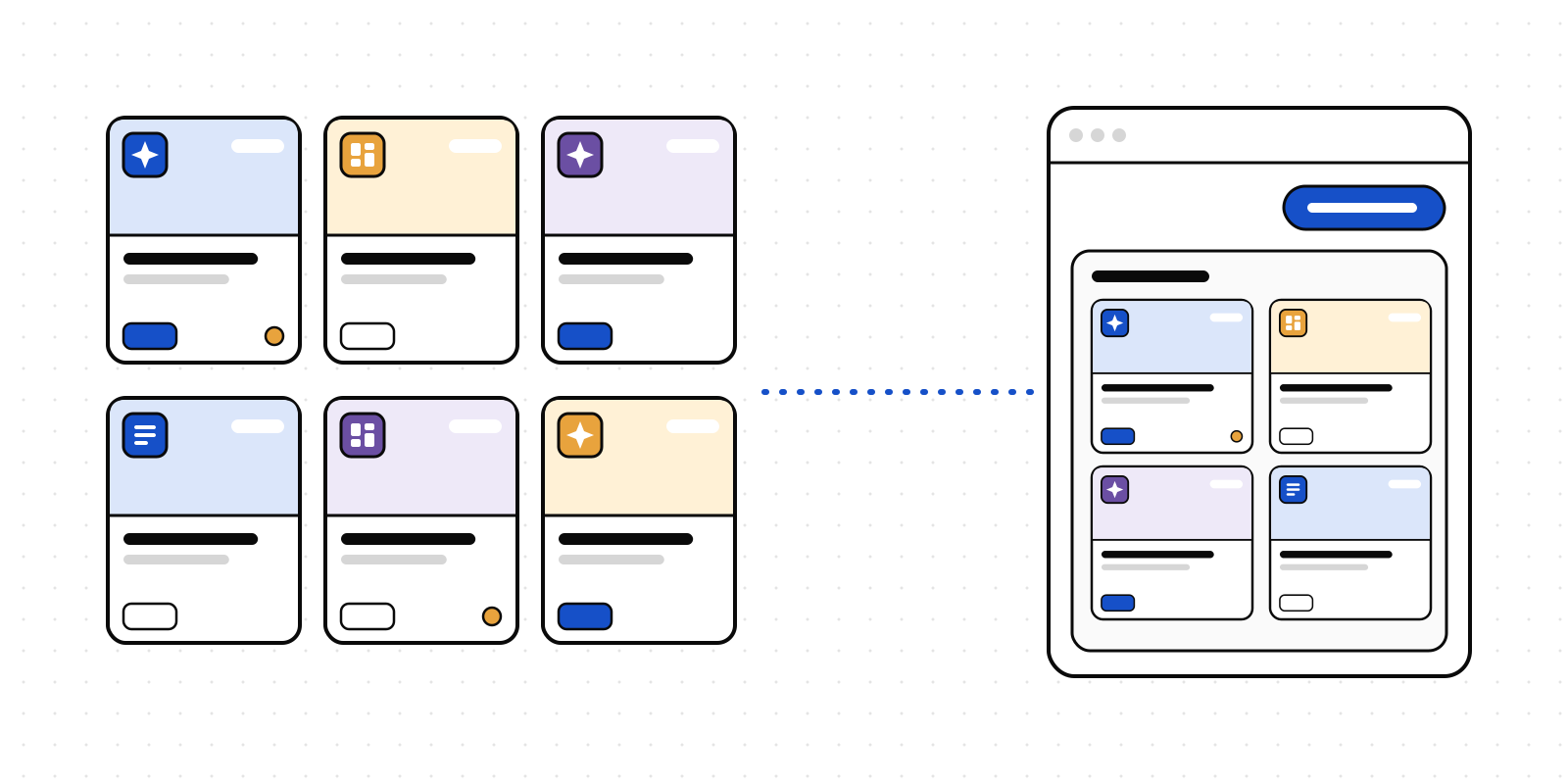
My library is one page with everything made available to you, as tiles. Each approved prompt you can use and each report shared with you gets a cover in its own colour, with a glyph that says what it is (a prompt, a dashboard, a briefing, a deck) and the first letters of its name, so you find things by eye before you read a word.
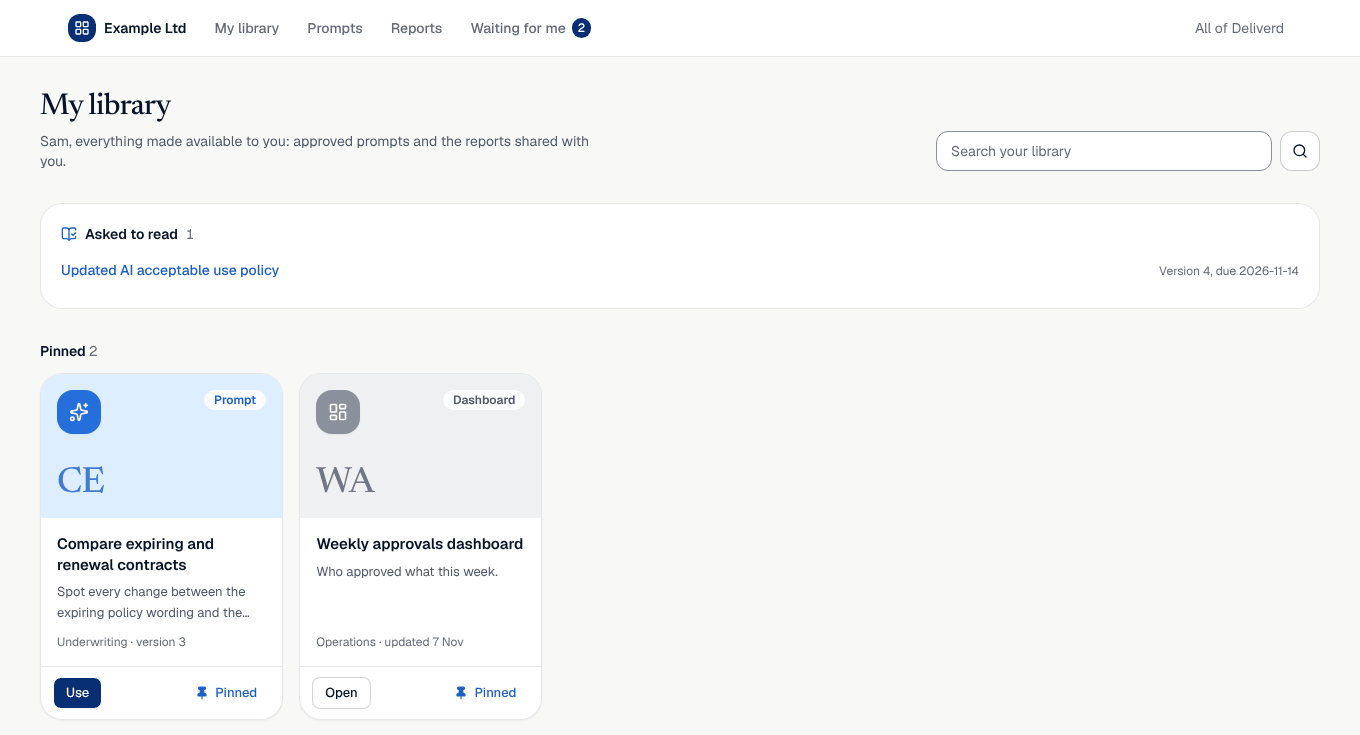
The page sorts itself around you:
- Asked to read comes first. When your organisation asks you to read and confirm a policy or a new version of a prompt, it waits here until you have.
- Pinned is yours to arrange. Press Add on any tile and it stays at the top, wherever your library appears.
- Used lately is what you opened or used in the last thirty days, so the thing you need again is already there.
- Then every prompt and every report, newest first, with a search box over all of it.
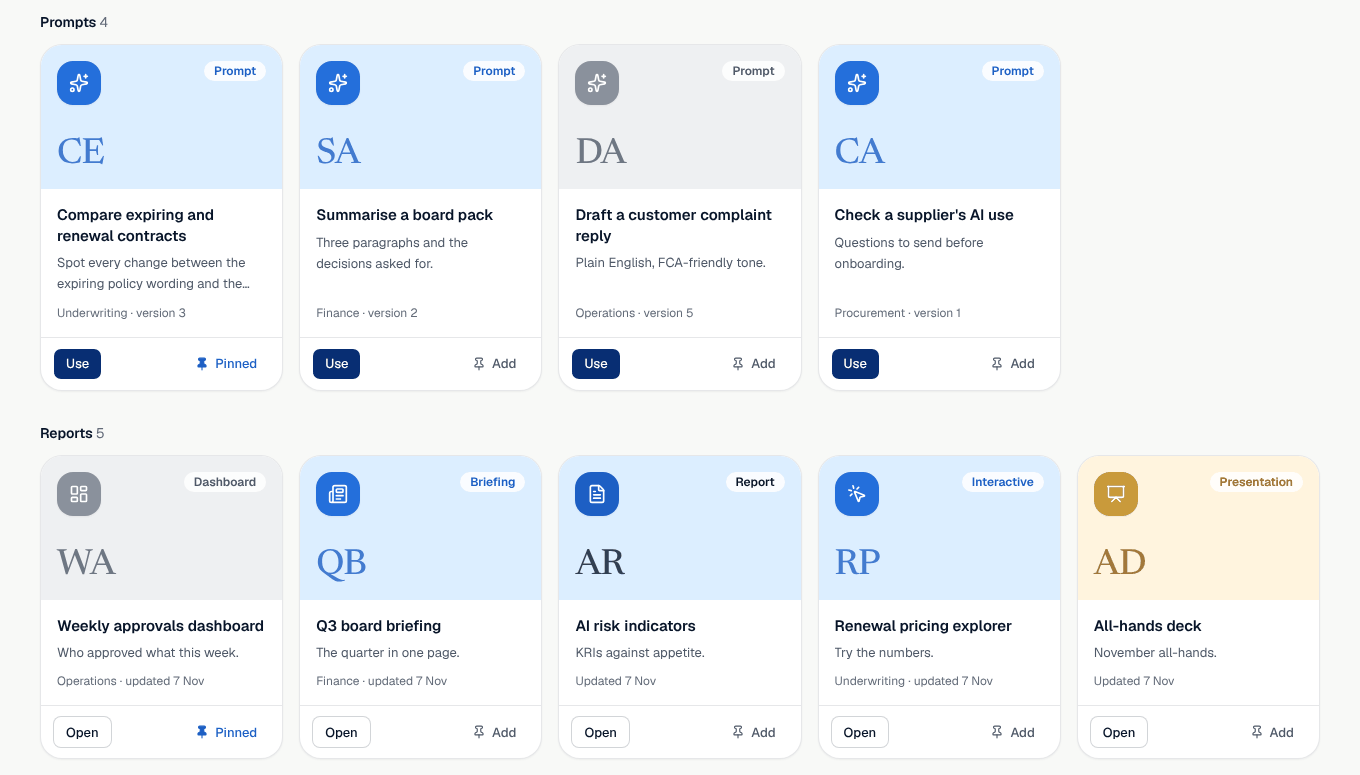
Prompts from one department share a colour, and so do reports from one workspace, so a library of forty items still reads at a glance.
Use a prompt without leaving the page
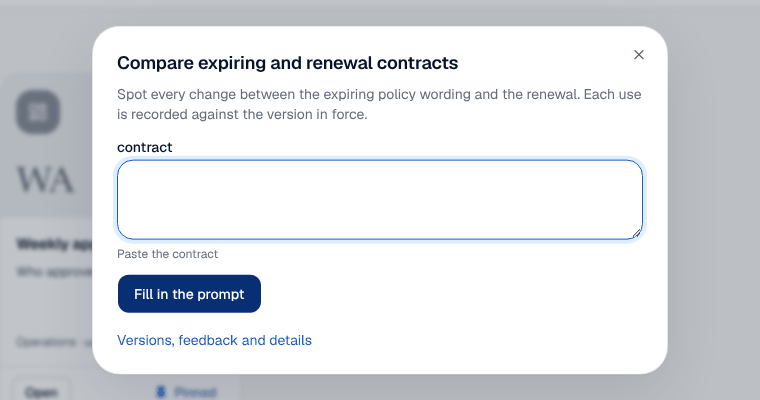
Press Use on a prompt tile and it opens right there. Fill in its inputs, copy the approved words, and get on with the work. Each use is recorded against the version in force, so whoever owns the prompt can see the approved words are the ones in use. If you want the history, the owner or the review date, the full page is one link away.
If you have not met approved prompts yet, the prompt that works should be the one everybody uses explains why they exist.
Straight there: prompts.deliverd.dev and reports.deliverd.dev
Bookmark it, put it in your intranet, send it round the team. prompts.deliverd.dev opens your library on its prompts, and reports.deliverd.dev opens it on its reports. You sign in once, as you always do, and land on the right tab.
It is the same Deliverd underneath. Nothing is copied into a second app, and the full product is one click away under "All of Deliverd". People who only read land on My library when they sign in; everyone else keeps their usual home page, with My library at the top of the menu.
In Teams, Outlook and the Microsoft 365 app, the Prompts and Reports tabs of the Deliverd app open the same library pages too.
In Copilot: type /prompts
This is the part we are most excited about. Ask Deliverd in Microsoft 365 Copilot for your prompts, or just type /prompts or /reports, and your library appears in the chat as a gallery of the same tiles, in the same colours.
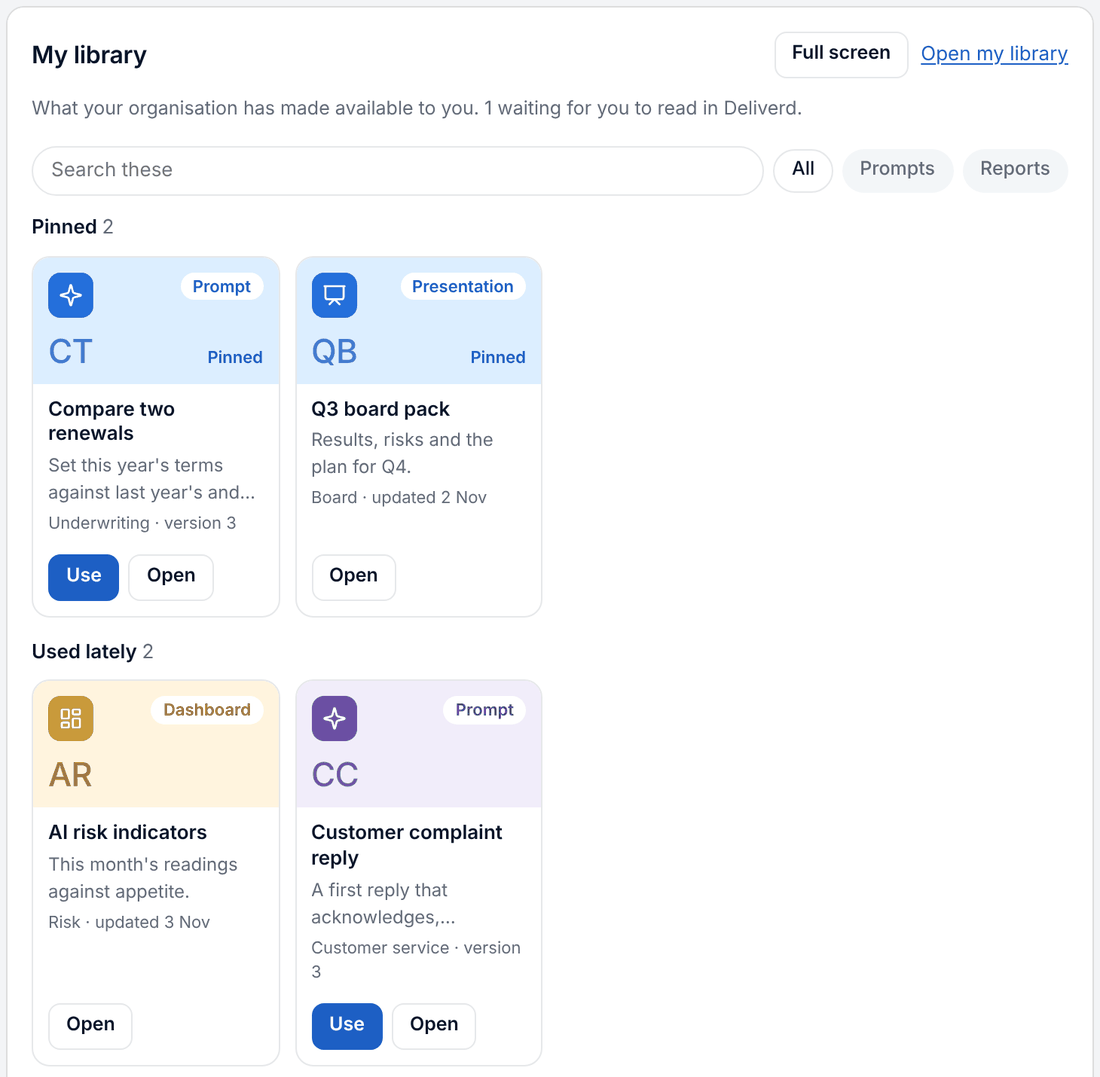
- Search and tabs narrow the gallery as you type, without another round trip.
- Use on a prompt asks Copilot to take that prompt, so it does the work with your organisation's approved words, and the use is recorded like any other.
- Open takes you to the report or the prompt's page in Deliverd.
- Full screen gives the gallery the whole Copilot panel, where Copilot offers it.
It follows your theme, light or dark.
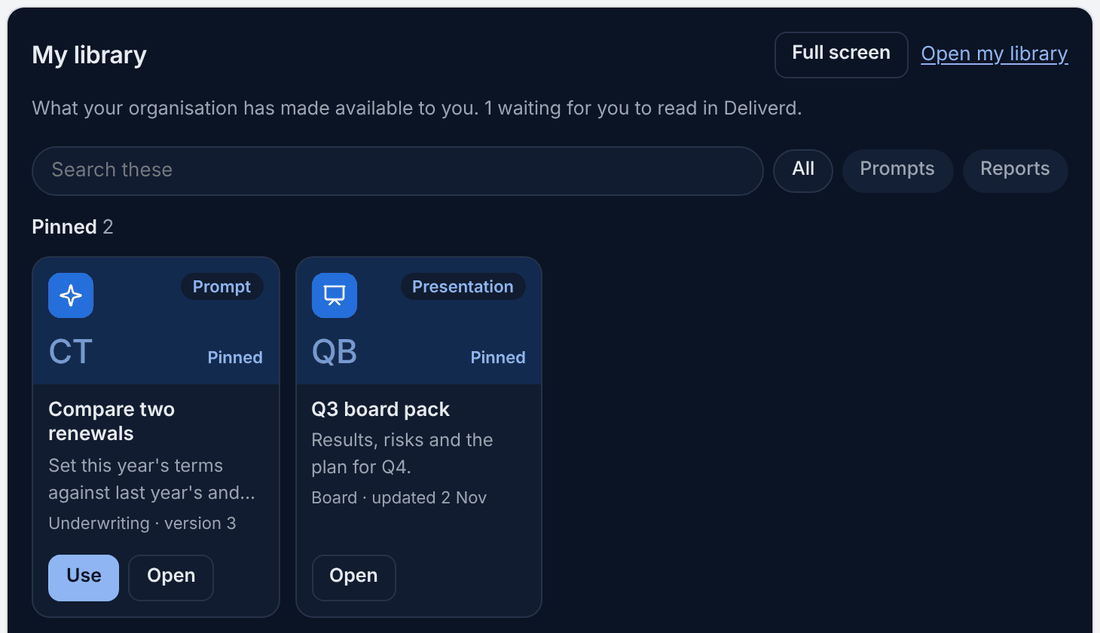
It comes with the next update of the Deliverd app for Microsoft 365. Any other assistant that shows MCP Apps can show the same gallery: it is the show_library tool on the Deliverd MCP server.
What it does not change
A library this easy to reach should not show anyone more than they could already see, so we held it to a few rules.
- Nothing new is shared. A report is on your library only when its audience includes you: by name, through a team or workspace you belong to, or the whole organisation. It is the same decision Deliverd makes when you open the report, so a tile never opens onto "you don't have access". An administrator's right to open any report, for oversight, does not fill their library with everyone's work.
- A pin grants nothing. If a report stops being shared with you, its pin simply stops showing.
- The gallery decides nothing. The card in Copilot can show, search, open and ask. It cannot approve, share or change anything, because it never calls a tool itself.
- Pictures don't travel with secrets. Where a chat app needs a picture of a tile, Deliverd draws one, rather than taking a screenshot of the report. The link to it works for a few days, and a confidential or restricted report's title is never drawn into it.
Try it
If your organisation already uses Deliverd, sign in and open My library from the menu, or go straight to prompts.deliverd.dev. If it doesn't yet, the pricing page shows how to start, and the free plan has no time limit.