VS Code · MCP
Agent mode does the work.
A person signs it off.
Get the right person's approval before Copilot's agent mode makes a change that is not yours to allow, with the answer kept after the session ends. The confirmation it asks for today is yours, in the editor; add one MCP server and it asks the person who owns the decision, wherever they are.
No card required · Approvals on every plan · No token to paste
The situation
What happens when VS Code needs a person today
The confirmation is in the editor
Agent mode asks before it runs a terminal command. The person who should decide about a production change or a customer-facing message is not looking at your editor.
A session's decisions die with the session
Every confirmation is a click in a panel. When the change is questioned later, there is no record of who allowed it or what they were shown.
Rules would settle most of it, and there are none
Most of what the agent asks about is routine. Without rules, every prompt costs a person's attention; without a record, nobody can say which ones were worth it.
Setup
Connect VS Code
Let Copilot's agent mode ask a person before it acts, and publish what it builds to a URL your organisation can open.
Opens VS Code and asks you to add the server; you approve the connection in your browser. If nothing happens, follow the steps below.
- 1
Or add it to .vscode/mcp.json
{
  "servers": {
    "deliverd": {
      "type": "http",
      "url": "https://deliverd.dev/api/mcp"
    }
  }
}
In the project for one repository, or in your user settings for all of them. The key is “servers” — VS Code ignores an “mcpServers” block.
- 2
Start it
Run “MCP: List Servers” from the command palette, start the server, and approve the connection in your browser.
No token is written anywhere. Deliverd implements the MCP authorization spec, so the client registers itself and you approve it in a browser — and removing someone from your organisation cuts their connection off at once, rather than whenever a token happens to expire.
What you get
Once it is connected
Everything below is one call from VS Code, over the connection you just made — the ask first, and publishing last.
One call to ask a person
request_approval, request_review or request_information over the connection above. The agent says what it wants to do, why, and what it affects, and the question goes to a named person — not to whoever is at the keyboard.
Decided wherever they are
They approve, correct a figure the agent marked as correctable, reject with a reason or ask the agent a question — on a page built for a phone, from an email link, or from a Slack or Teams card. A colleague can cover while they are away.
The agent carries on
The decision comes back as something the agent can branch on: poll get_approval, wait on a callback URL, or let the SDK block. Approved, it does the action. Rejected, it stops and knows why.
A check before it acts
Before a payment, a deployment or a message to a customer, check_gate declares the action. With no rules a named person decides every one; with rules, the routine cases are settled and the rest go to a person.
A record of who allowed what
Who was asked, what they were shown, what they decided and when — kept as the work happens, and exported as an evidence pack in JSON, CSV or PDF with a digest so an altered copy can be told apart.
And when there is a report, a URL instead of a file
publish_report puts the HTML the agent writes on an address behind your organisation's sign-in, versioned, with comments anchored to the passage they are about. One capability among the rest, over the same connection.
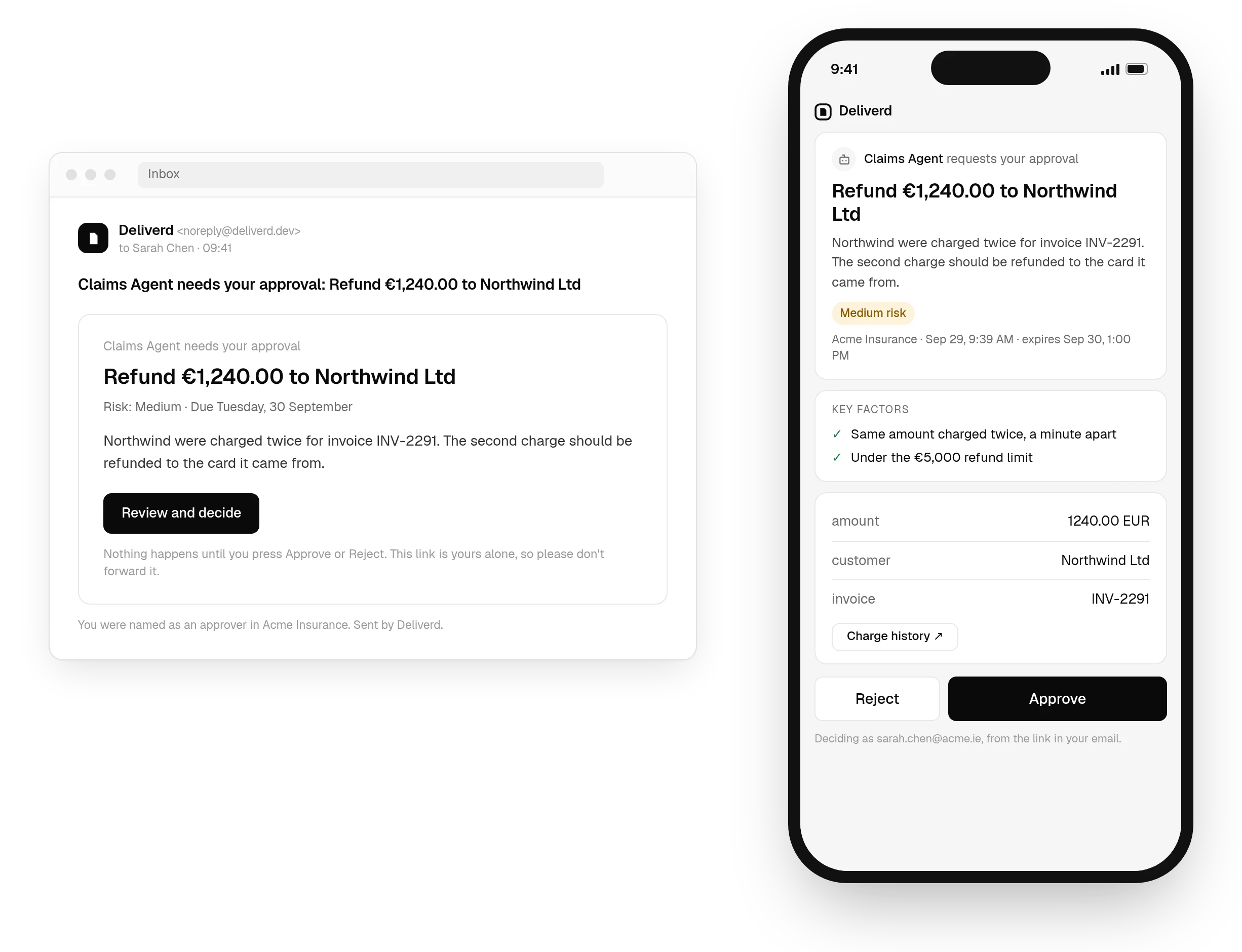
request_approval over the connection above, answered on a page that works on a phone, with the decision back in VS Code as soon as it is made. See how approvals work →Questions
VS Code and Deliverd.
What does the Add to VS Code button do?
It opens VS Code and asks you to add the server entry, exactly as if you had written it into .vscode/mcp.json yourself. Nothing is written until you confirm, and the entry holds only a URL.
Where does the config go if I add it by hand?
.vscode/mcp.json inside a project, or your user settings for every project. The key is “servers” — VS Code's file is not the same shape as Cursor's, and an “mcpServers” block is ignored.
Do I need a token?
No. VS Code registers itself with the server and opens a browser for you to approve the connection. Removing you from the organisation cuts the connection off at once.
What can Copilot do once it is connected?
Ask a named person for approval, a review or information it is missing, check a gate before a consequential action, and keep a task's objective and state across sessions — all over the same connection. It can also publish a report, update it in place, read reader comments and resolve them.
Does this work with the Insiders build?
Yes — the second button opens Insiders instead. Both builds read the same mcp.json format.
Let VS Code act. Know who said it could.
One call to ask a person, answered where they are, and a record of who allowed what — from the tool you already have open.