Say it on the page
12 September 2026 · Deliverd Engineering Team · 4 min read
The most useful feedback we get about a report has never arrived as a comment. It arrives as an email with a screenshot pasted in, an arrow drawn on it in red, and a sentence like this chart, but as a table.
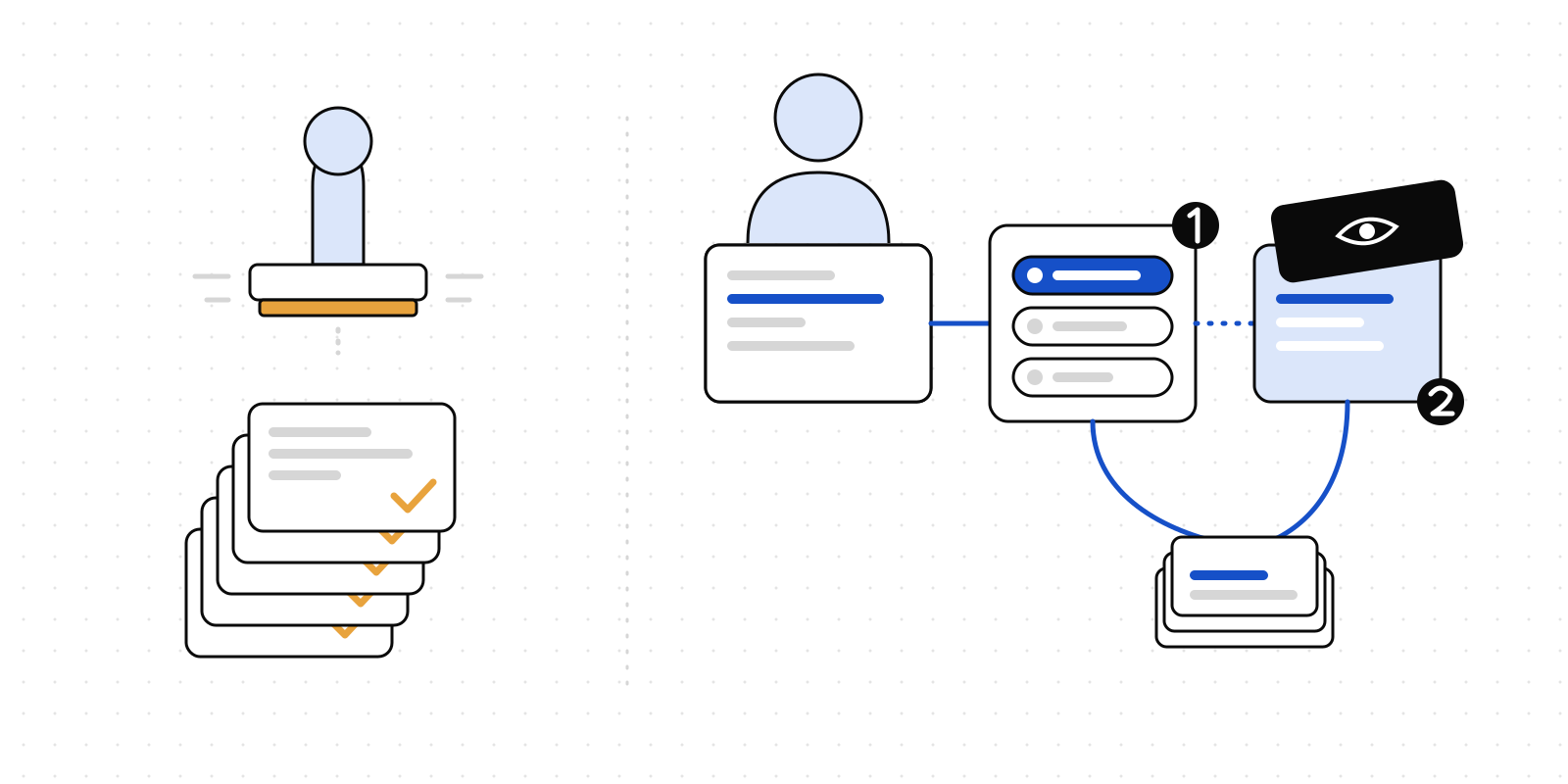
That email is doing three jobs at once. It points at the exact place. It shows what the reader saw, which is not always what you see. And it says what they want instead. A comment box on the page has historically managed one of those three.
This week we built the other two.
Point at it, then show it
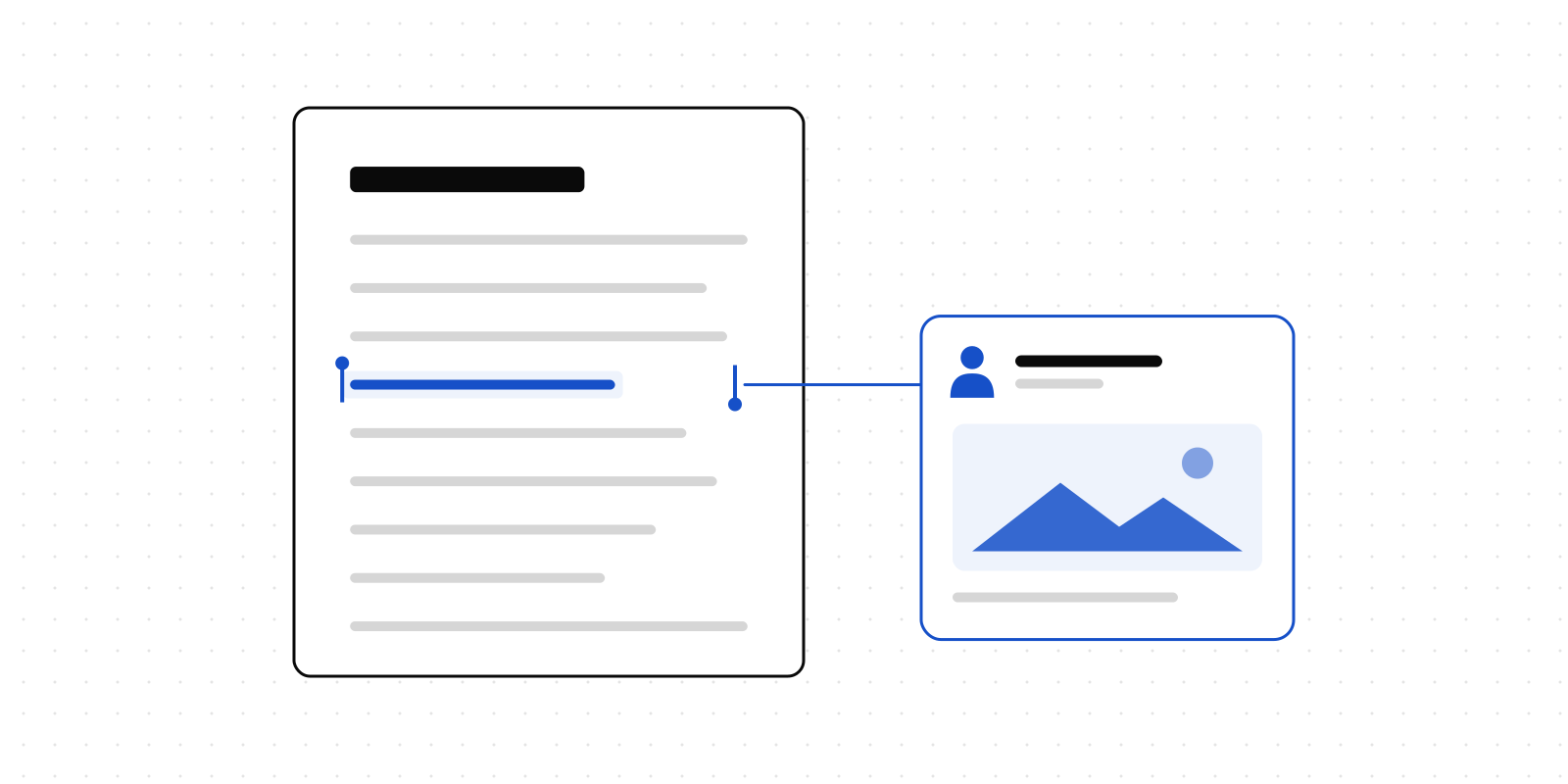
Comments in Deliverd were already anchored: you select a passage, the comment attaches to that text, and it stays attached when the report is republished and the wording shifts around it. What was missing was the picture.
Two things are new in the panel.
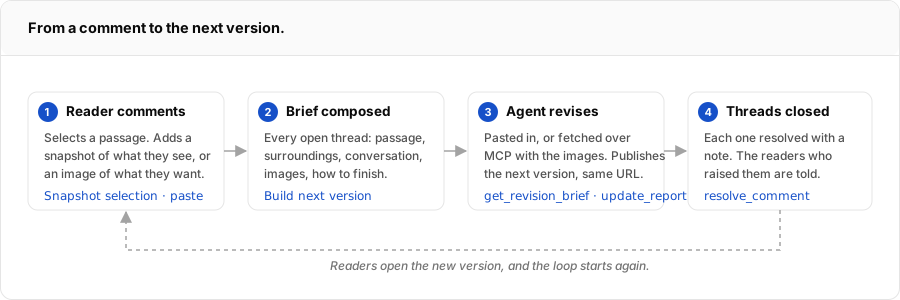
Snapshot selection. With a passage highlighted, one button photographs it. Not a screenshot of your screen — a capture of the report as you are allowed to see it, taken on our side, of that passage and a little around it. If your organisation watermarks readers, the watermark is in the picture. If the report is pinned to an earlier version, that is the version in the picture. It is what you saw, as evidence, attached to what you said.
Paste or drop an image. The red arrow still has a place. Paste a marked-up screenshot, drop in a mock-up of the table you would rather have, up to four images on a comment or a reply. They sit on the thread as thumbnails beside the conversation.
Both kinds are stored privately and served only to people who could open the report anyway. There is no public link to an image of a client's numbers.
The conversation stays where the work is
Replies, mentions by email, resolve and reopen — all of that was already there. What changes is that the thread now carries everything a person would have put in the email: the passage, the words, the picture, and the back-and-forth. Nobody has to reconstruct it later from a mail archive.
On the report's own page there is now a Feedback card, so the person who published it does not have to open the report to learn there are six open threads. It says what is open, what has gone to the agent, and what the current version addressed.
Then turn it into the next version
Here is the part we are most pleased with.
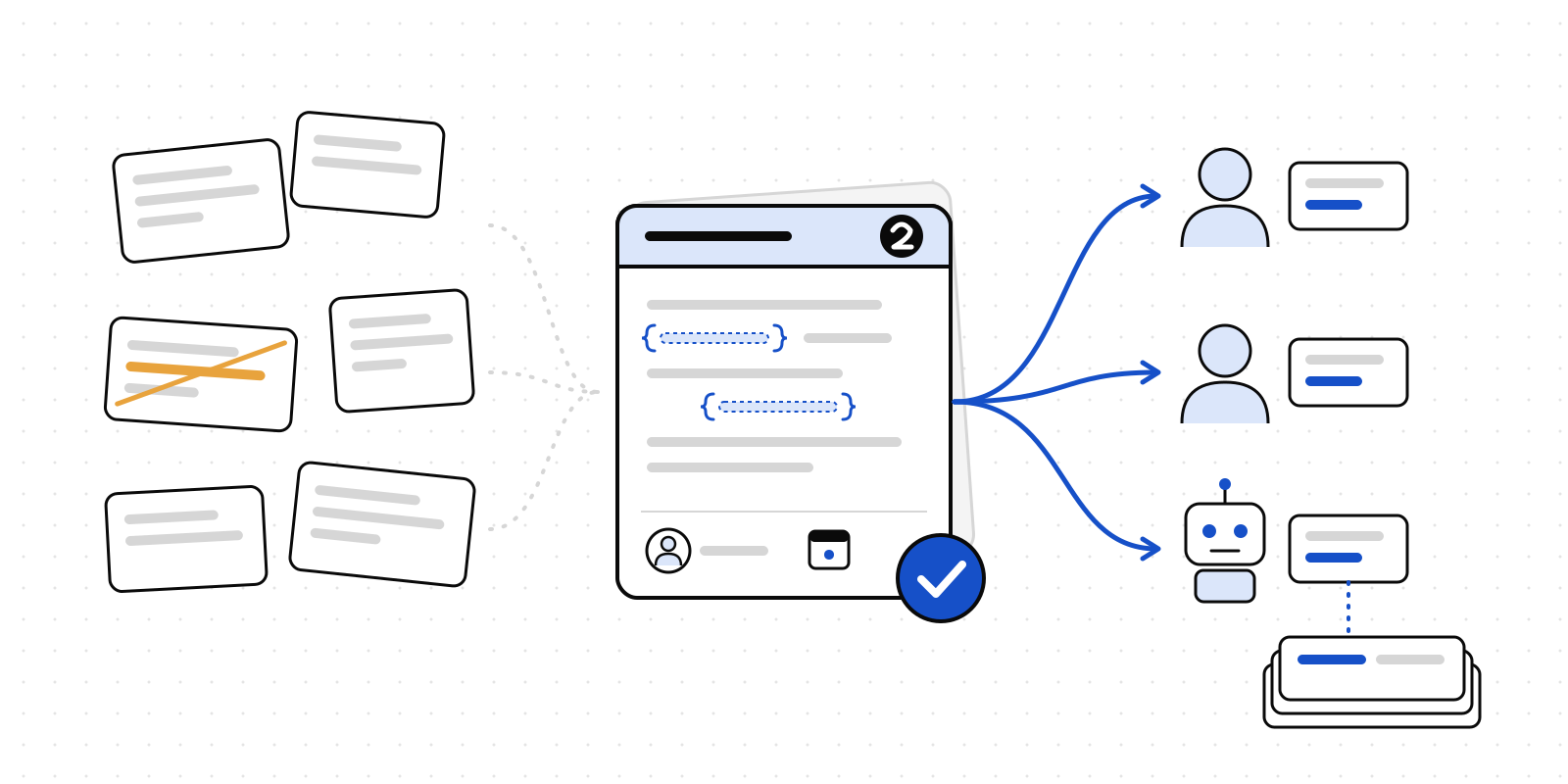
When you are ready to revise, press Build next version. Pick the threads to include — all the open ones by default — add a line of direction if you have one, and you get a single prompt. It contains the report and its current version, every thread's quoted passage, the text around it as it stands today, the whole conversation, links to the images, and instructions for how to finish: publish the result as a new version of the same report, then close each thread with a note saying what changed.
Paste that into Claude Code, Cursor, Codex or ChatGPT — whichever wrote the report — and the revision is a conversation the agent already has all the context for. You did not retype anything. You did not describe a screenshot in words.
If the agent is connected to Deliverd over MCP, you do not even paste. Ask it to revise the report from its revision brief, and it fetches the same text with the images attached.
What the reader gets back
The agent publishes the new version at the same address, so the link everyone already has opens the revised report. It resolves each thread it addressed with a note, and the reader who raised it is told. The Feedback card on the report page shows the brief, how many of its threads came back resolved, and what the new version addressed.
The loop closes. The next round of feedback starts on the new version, with the same panel.
Two honest limits
Verified guests — people outside your organisation who open a report with a one-time code — can read comments today but cannot yet leave them or attach images. That is the next thing we build in this area, because the client is the reader whose red arrow matters most.
And the first snapshot after a quiet spell takes about ten seconds, for the same reason the first PDF export does: the browser that takes it is started on demand. The second one is quick.
If you have a report with feedback on it, open it, select the sentence that is wrong, and press the camera. Then press Build next version and see what your agent does with it.